 HSA Verse
Store Manager Guide
Every part of your online store, what it looks like to customers, and exactly where in the admin panel you change it. Admin panel: https://your-shop/cpanel
1. How to use this guide
Each section shows a part of the store as customers see it. The purple label under each heading tells you where to change it in the admin panel.
2. Announcement bar
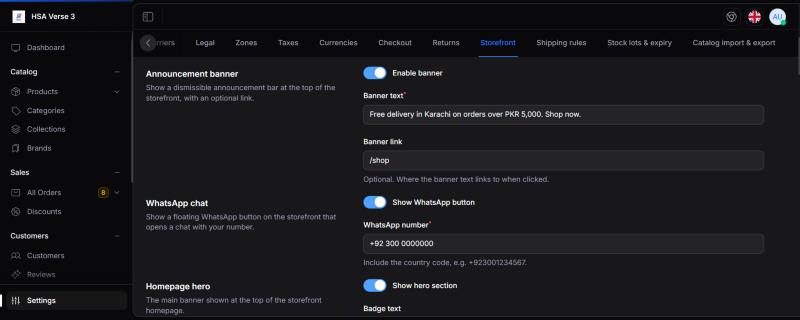
Settings › Storefront › Announcement banner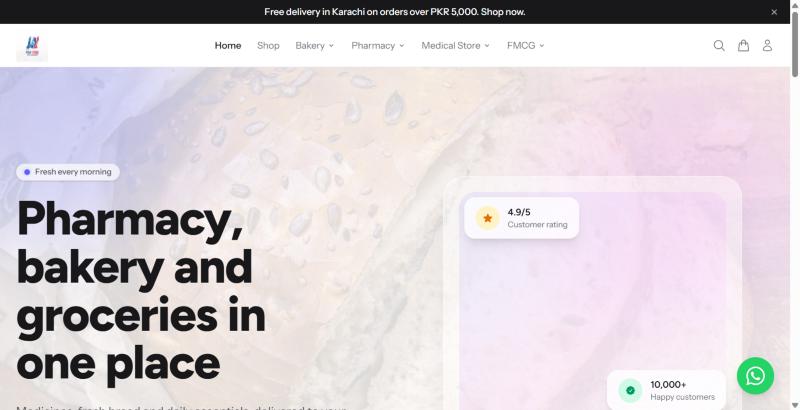
| Field | What it does |
|---|---|
| Enable banner | Turns the strip on or off. |
| Banner text | The message. Keep it to one short sentence. |
| Banner link | Optional. Where the strip goes when clicked, e.g. /shop or a collection page. |
Customers can close the strip with the × on the right.
3. Header and menu
Catalog › Categories Settings › General (logo)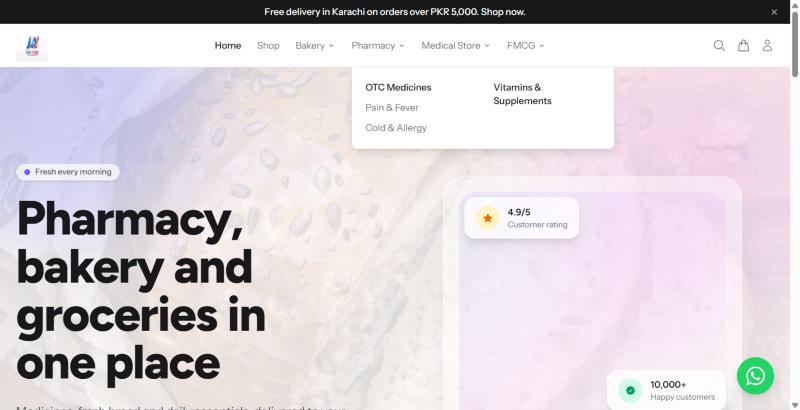
- Logo: upload it in Settings › General. It also appears on receipts, shipping labels and the login page.
- Menu items: the first six enabled top-level categories, in their Position order. Edit in Catalog › Categories.
- Dropdown: any category with sub-categories gets a dropdown. To add one, create a category and choose its Parent.
- To hide a category from the menu, switch off Visible (enabled) on it.
4. Homepage hero
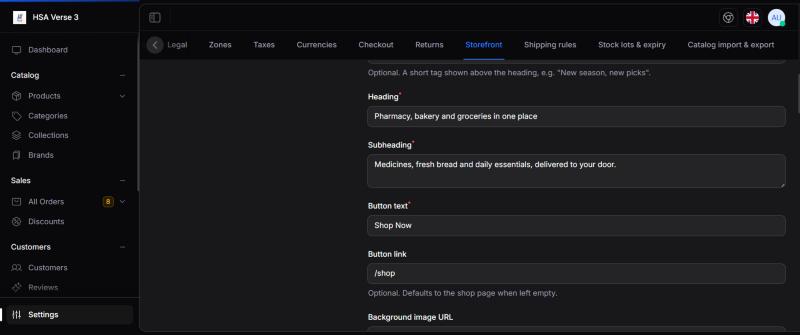
Settings › Storefront › Homepage hero| Field | Shows as |
|---|---|
| Show hero section | Turns the whole block on or off. |
| Badge text | Small pill above the heading ("Fresh every morning"). |
| Heading | The large title. |
| Subheading | The sentence under the title. |
| Button text / Button link | The dark button. Link defaults to the shop page. |
| Background image URL | A photo behind the hero. Paste a full https:// image link. Leave empty for the plain decorative background. |
Background style (same page) changes the soft colour wash behind the hero and listing pages: Gradient, Gradient + grain, Light, or None.
5. Trust badges
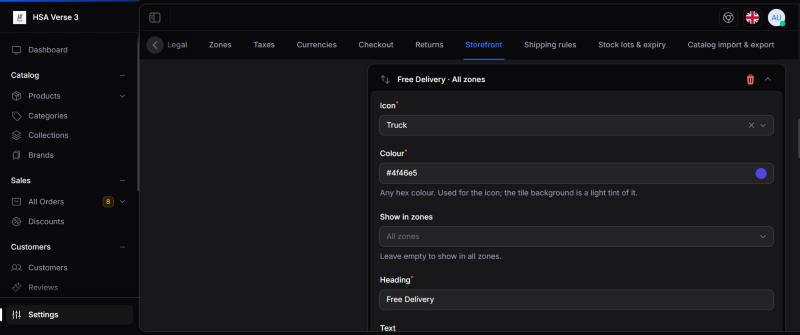
Settings › Storefront › Trust badges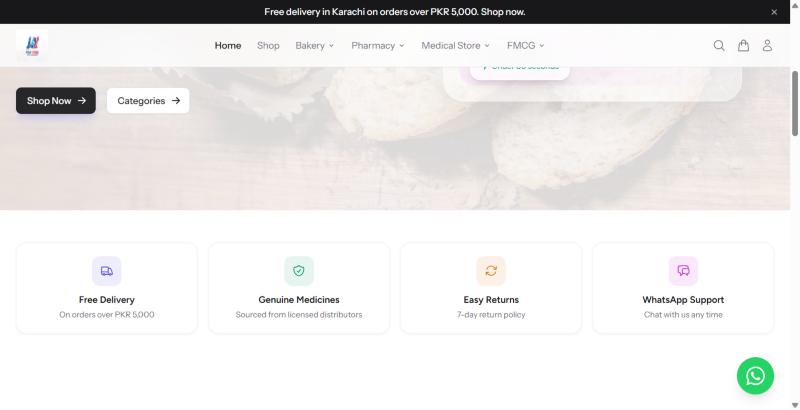
- Switch on Show trust badges.
- Click Add badge (up to 6). For each badge pick an Icon, a Colour, a Heading and a short Text.
- Optional: Show in zones limits a badge to some countries (e.g. "Free delivery" only in Pakistan). Leave empty for everyone.
- Drag badges to reorder, then Save.
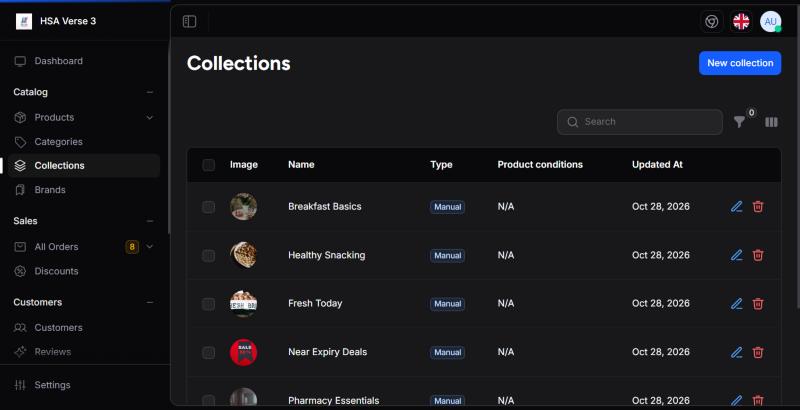
6. Shop by Collections
Catalog › Collections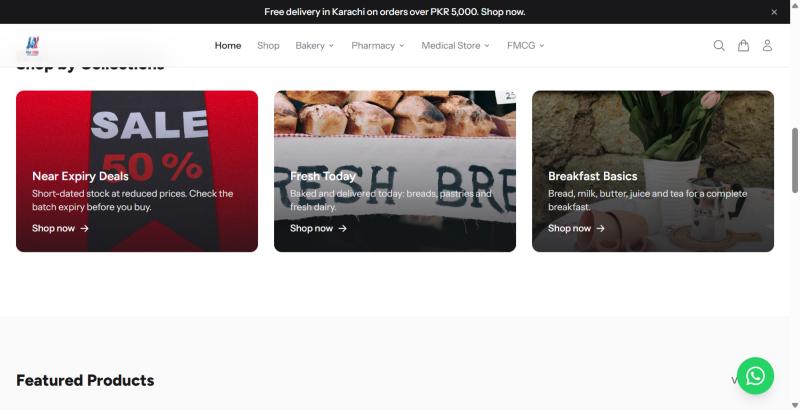
- Each tile is a collection: its image, name and description.
- Only published collections show (set a Published at date in the past).
- Manual collections: you pick the products. Automatic collections: products are added by rules (e.g. price, tag).
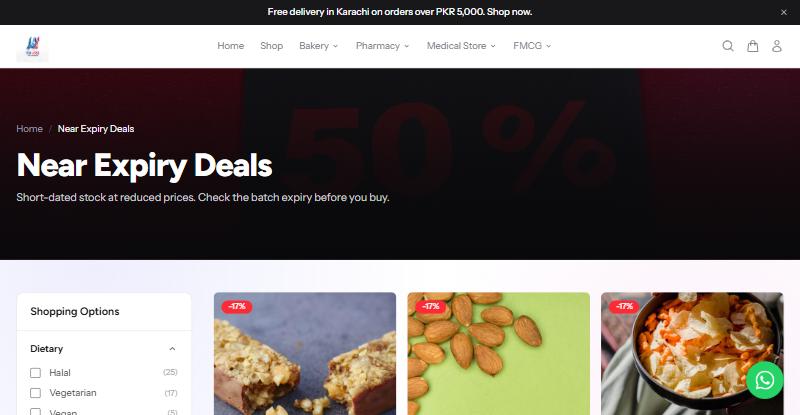
7. Featured products and product cards
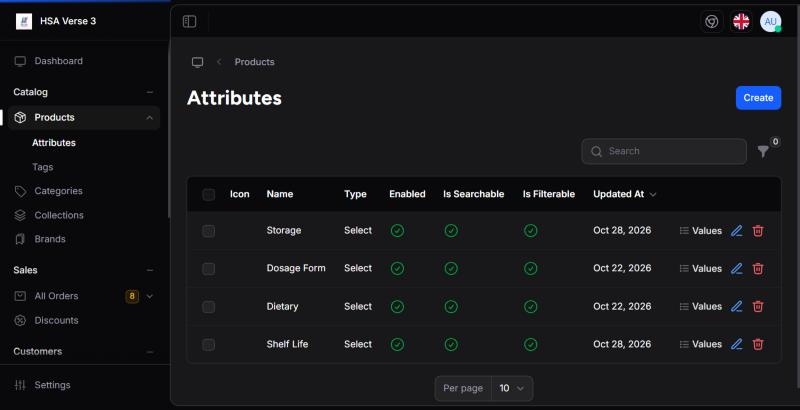
Catalog › Products › edit › Featured Catalog › Attributes › Show on product cards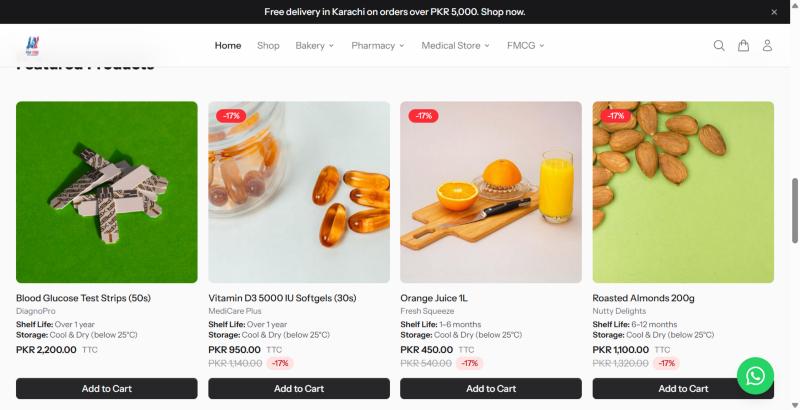
| On the card | Where it comes from |
|---|---|
| Photo | Product › Media: the first image (thumbnail). |
| Brand (grey line) | Product › Brand. |
| "Shelf Life: …", "Storage: …" | Attributes ticked Show on product cards in Catalog › Attributes. Values come from the product's Attributes tab. |
| Price and crossed-out price | Product › Pricing: Price and Compare at price. |
| Red "-17%" pill | Calculated from price vs compare-at price. Shows "Out of Stock" instead when nothing can be sold. |
| "TTC" after the price | Tax label: Settings › Storefront › Show tax label (text: Tax inclusive label). |
To put a product in Featured Products, open it and switch on Featured. Only visible, published products show.
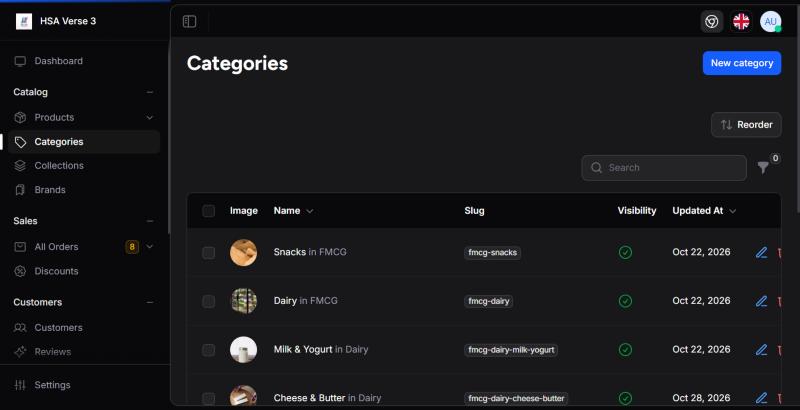
8. Shop by Category
Catalog › Categories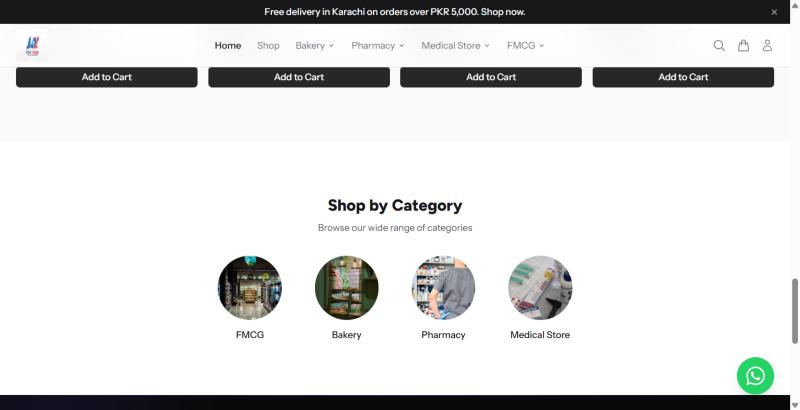
Shows enabled top-level categories with their image. Upload or change the image when editing the category. Categories without products still appear.
9. WhatsApp chat button
Settings › Storefront › WhatsApp chat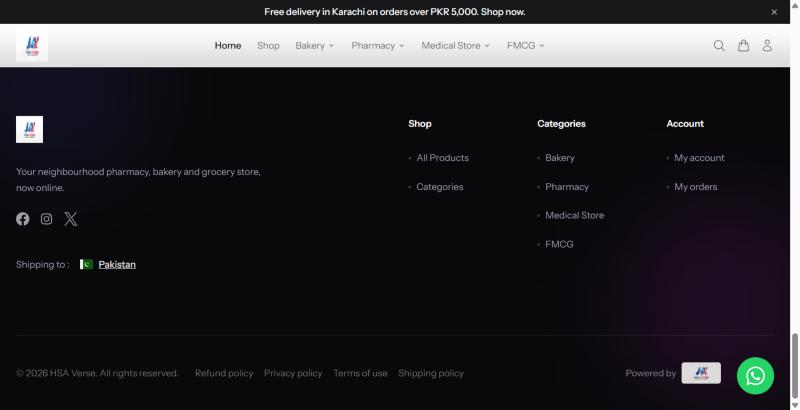
- Switch on Show WhatsApp button.
- Enter the WhatsApp number with country code, e.g.
+92 300 1234567. Spaces and dashes are fine. - Save. Clicking the button opens a WhatsApp chat with that number (app on phones, WhatsApp Web on computers).
10. Footer, social links and legal pages
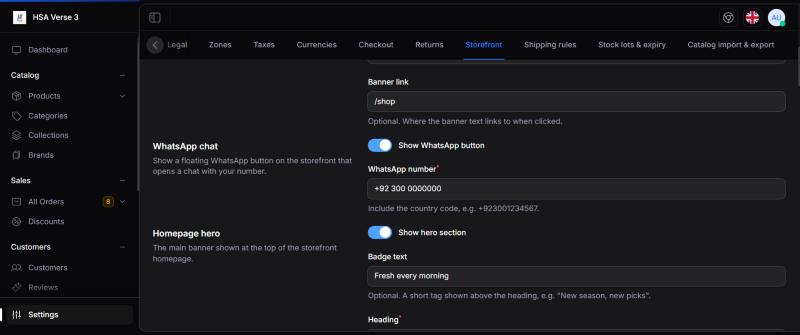
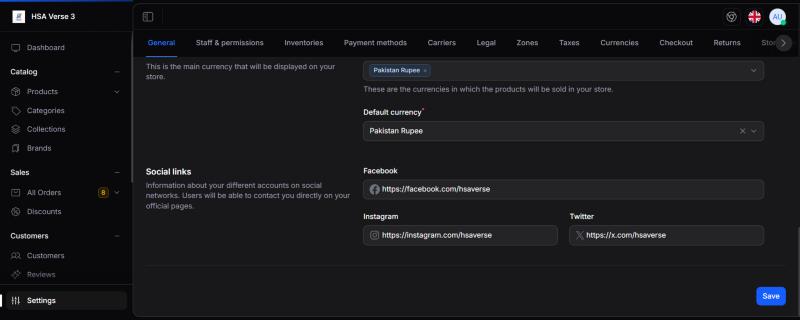
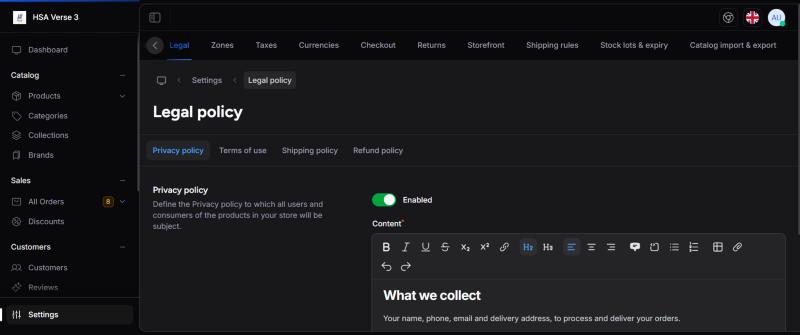
Settings › Storefront › Footer text Settings › General › Social links Settings › Legal| In the footer | Change it in |
|---|---|
| Short text under the logo | Settings › Storefront › Footer text |
| Facebook / Instagram / X icons | Settings › General › Social links. Empty links are hidden. |
| Category links | First enabled top-level categories (Catalog › Categories). |
| Refund, Privacy, Terms, Shipping policy | Settings › Legal. Each policy shows only when it is enabled and has text. |
| "© 2026 HSA Verse" | Settings › General › Legal name (falls back to store name). |
| "Shipping to: Pakistan" | Customer's country choice. Countries come from Settings › Zones. |
Each legal page opens at /legal/privacy, /legal/refund, /legal/terms and /legal/shipping. Saving a policy updates the store immediately.
11. Shop, category and search pages
Catalog › Attributes › Filterable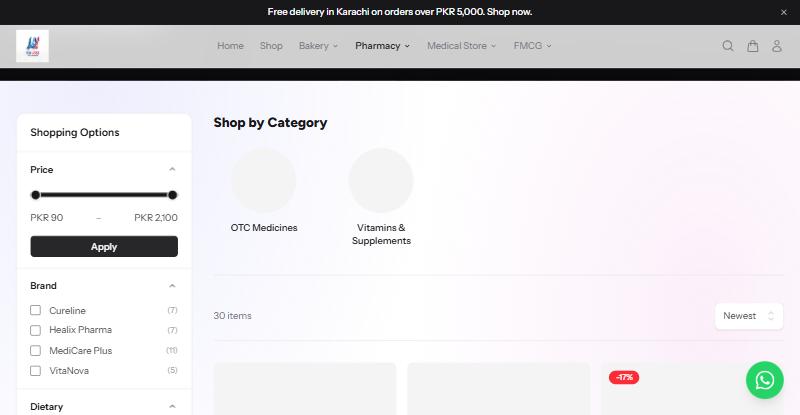
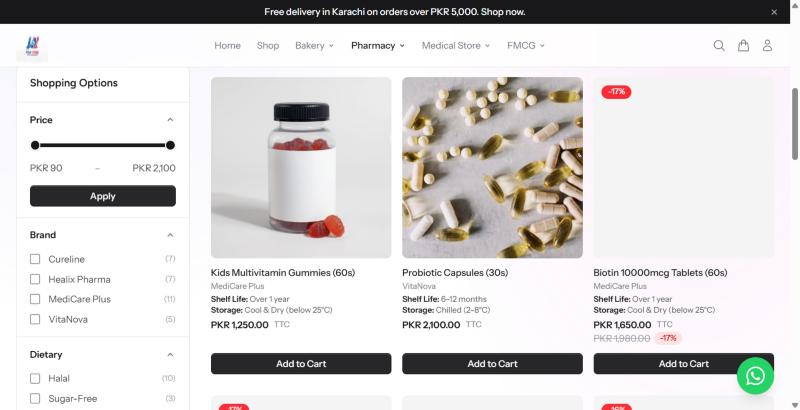
- Price slider: automatic, from the lowest to highest price in that list.
- Brand filter: automatic from product brands.
- Attribute filters (Dietary, Shelf Life, Storage…): an attribute appears here when Filterable is ticked in Catalog › Attributes. Works for Select, Checkbox, Colour and Number attributes.
- In stock only: hides products that cannot be bought.
- Search also matches attributes ticked Searchable.
12. Product page
Catalog › Products › edit| Part of the page | Product tab / setting |
|---|---|
| Photo gallery | Media tab: upload images, drag to reorder. |
| Options (size, colour) | Variants tab (variant products only). |
| Specifications table | Attributes tab: every enabled attribute with a value. |
| Description | General tab › Description. |
| Customer Reviews | Customers who bought the product can review it. Approve or reply in Customers › Reviews. |
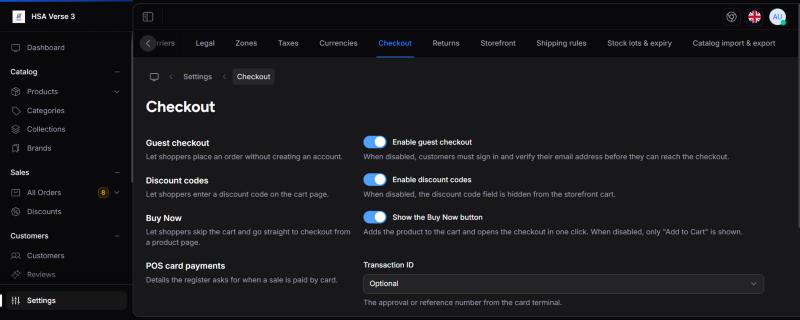
| Buy Now button | Settings › Checkout › Show the Buy Now button. |
13. Cart and checkout
Settings › Checkout Settings › Shipping rules| Customer sees | Change it in |
|---|---|
| Checkout without an account | Settings › Checkout › Enable guest checkout |
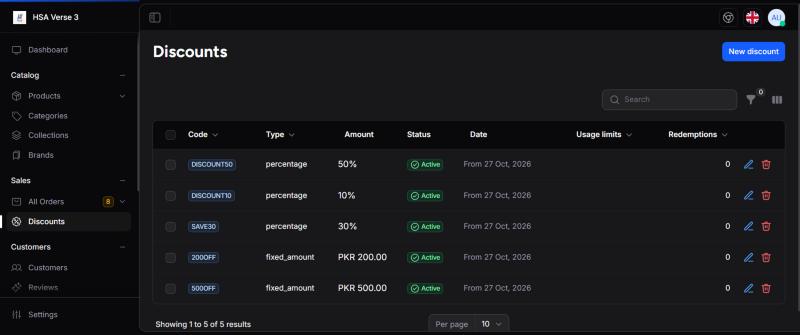
| Discount code box | Settings › Checkout › Enable discount codes; create codes in Sales › Discounts |
| Delivery options and prices | Settings › Carriers and Zones; free-delivery thresholds in Settings › Shipping rules |
| Payment methods | Settings › Payment methods |
| Taxes | Settings › Taxes |
| Currency (PKR / USD) | Settings › Currencies and Zones |
14. Online-only and POS-only products
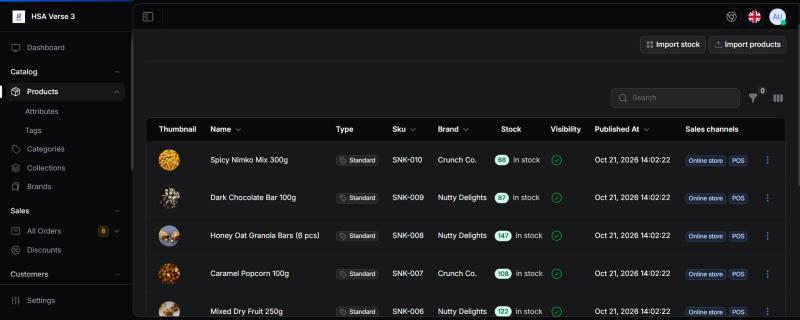
Catalog › Products › edit › Sales channelsEach product can be sold online, at the POS (counter), or both.
- Online-only products never appear in the POS register.
- POS-only products are hidden from the website, search and sitemap, and cannot be added to a cart.
- The products list has a sales channel column and filter.
15. Orders, shipments and dashboard
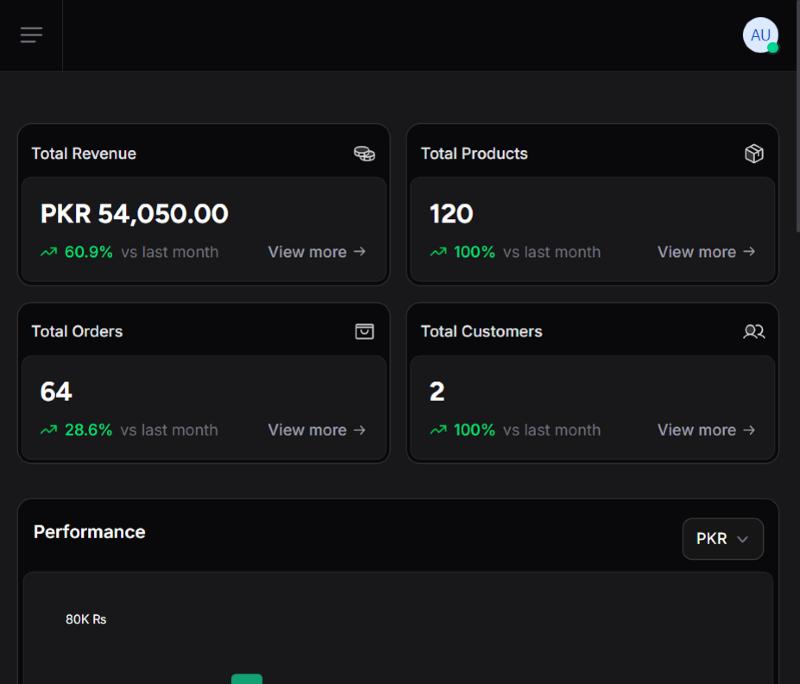
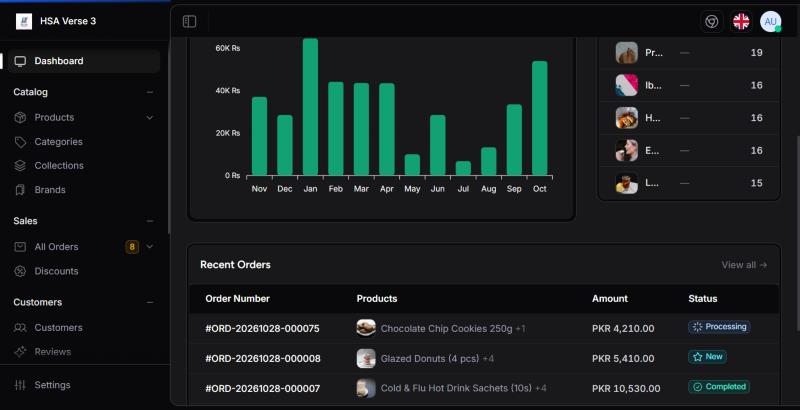
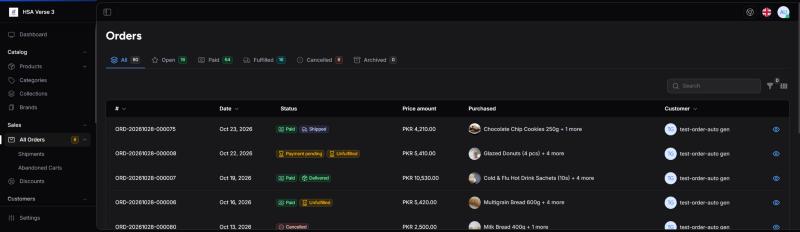
Sales › All Orders Sales › Shipments Dashboard- Dashboard: revenue, orders, customers and the performance chart count paid orders only. Top Selling Products uses paid orders.
- All Orders: open an order to change status, mark it paid, and create a shipment.
- Create shipment: pick the carrier, enter a tracking number; a printable shipping label PDF is generated.
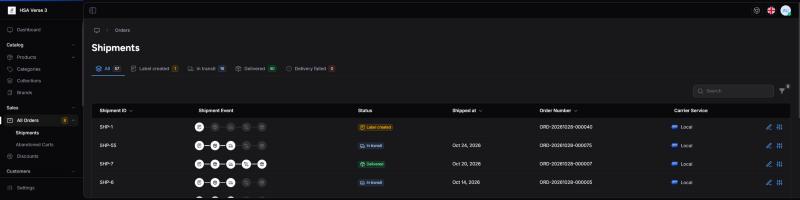
- Shipments: every shipment with its tracking and delivery status.
- Abandoned carts: carts customers left without paying.
Ship and deliver in one click
At the top of every order page:
- Ship order: the carrier is pre-selected from the customer's choice. Type a tracking number or leave it empty to get an AWB number (e.g.
AWB2610290000123). Click Ship and print label. All unshipped items go into one shipment, the label PDF opens for printing, and the order is marked shipped. - Mark delivered: when the courier confirms, click it once. Every open shipment becomes delivered, and the order completes itself.
The bar also shows the latest shipment, its status and a Print label link. The detailed Shipments page and its steps (in transit, out for delivery) still work for couriers that report each step.
Activity log
The Activity card on the right of the order page lists everything that happened to the order and who did it: placed, payment changes, status changes, each shipment step and notes. Changes made by the website or the system show as "System / customer".
16. Point of Sale (POS)
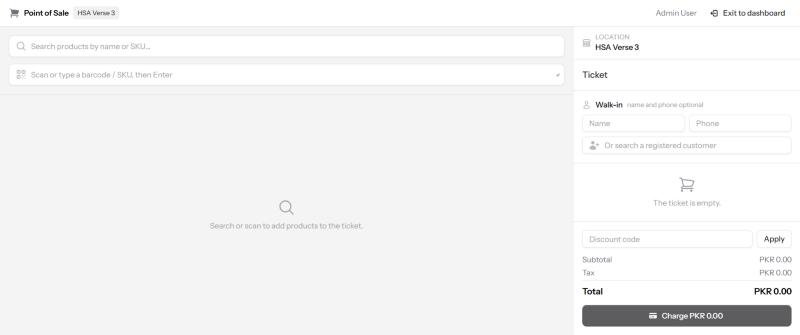
Point of Sale › Register Settings › Checkout › POS card payments- Register: search or scan products, add to cart, choose customer, take cash or card payment, print the receipt.
- Card payments: Transaction ID and card number (first digits) can each be Hidden, Optional or Required.
- Returns: find the sale, choose items to return; resellable items go back to stock. A return voucher can be issued (Settings › Returns).
- Orders / Return History: past POS sales and returns with reprintable receipts.
17. Stock lots and expiry
Settings › Stock lots & expiry Product › Stock & Inventory Stock › Lot expiry reportA lot (batch) is a delivery of one product with its own expiry date, e.g. 40 loaves expiring on 24 October. With lots on, the shop sells the right batch first, stops expired stock being sold, and shows you what's about to expire.
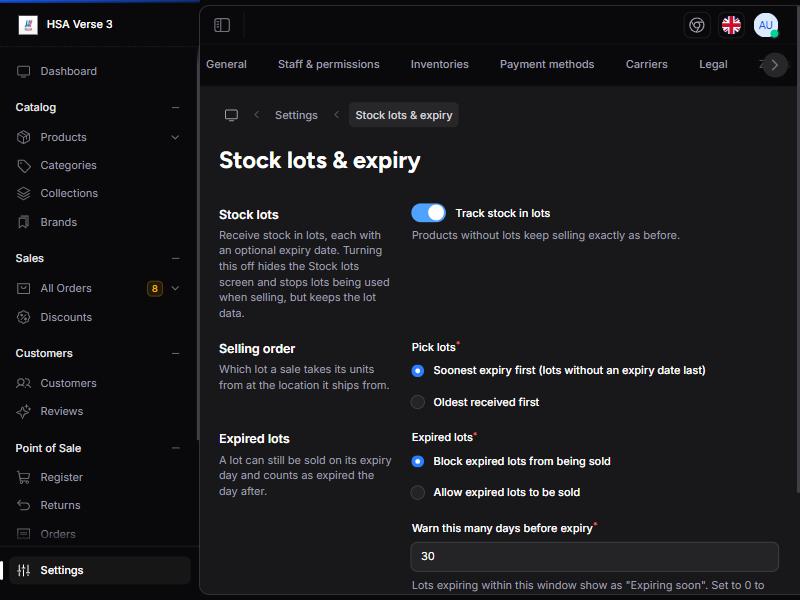
Switch it on
| Setting | Default | What it does |
|---|---|---|
| Track stock in lots | Off | Turns lots on for the whole shop. Products without lots keep selling exactly as before. |
| Pick lots | Soonest expiry first | Which batch a sale takes from: Soonest expiry first (lots without a date last), or Oldest received first. |
| Expired lots | Block | Block expired lots from being sold or Allow expired lots to be sold. A lot can still be sold on its expiry day; it counts as expired the next day. |
| Warn this many days before expiry | 30 | Lots expiring within this many days show as Expiring soon. 0 flags only expired lots. |
Receive stock as a lot
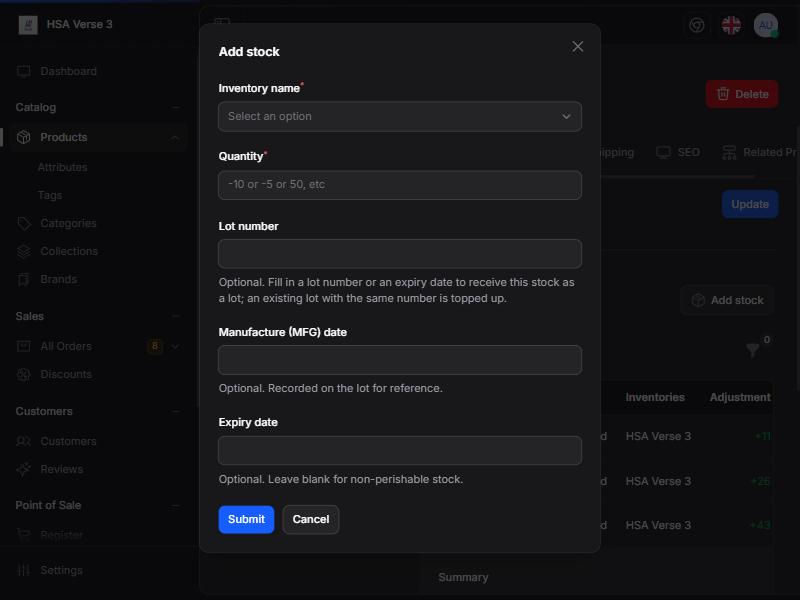
- Open the product and go to the Stock & Inventory tab (for a variant, its own stock area).
- Click Add stock.
- Choose the Inventory name (branch) and enter the Quantity received.
- Fill in the Expiry date, and optionally Lot number and Manufacture (MFG) date.
- Click Submit.
- Fill any one of the three lot fields and the stock becomes a lot. Leave all three empty for normal (non-perishable) stock.
- No lot number but a date? One is created for you (like
LOT-20261006-K3QZ). - Same lot number again at the same branch? That lot is topped up.
- MFG date can't be after the expiry date. Lot numbers: up to 64 characters.
- Removing stock: enter a negative quantity (e.g.
-5). A Take from lot list appears; pick the lot, or leave it empty to remove normal stock.
Lots on the product page
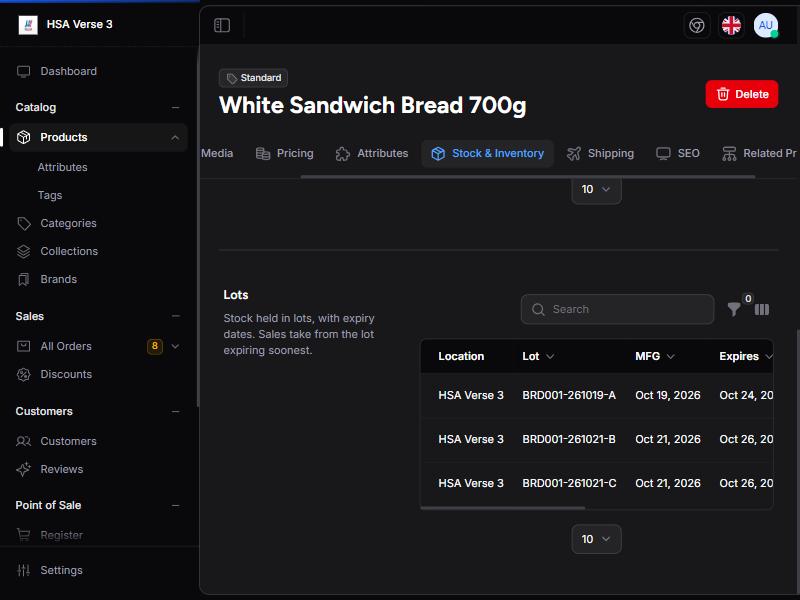
Columns: Location, Lot, MFG, Expires, Quantity, Received, Status. Each row has two actions (needs Manage Stock Lots):
| Action | Use it when | Fields |
|---|---|---|
| Adjust | You counted the lot and the number is different. | Counted quantity and an optional Note. Stock changes by the difference. |
| Write off | Units are expired, damaged or lost. | Quantity to write off and a required Reason. The units leave the lot and your stock. |
Lots that reach 0 disappear from the list but stay on record.
Lot expiry report
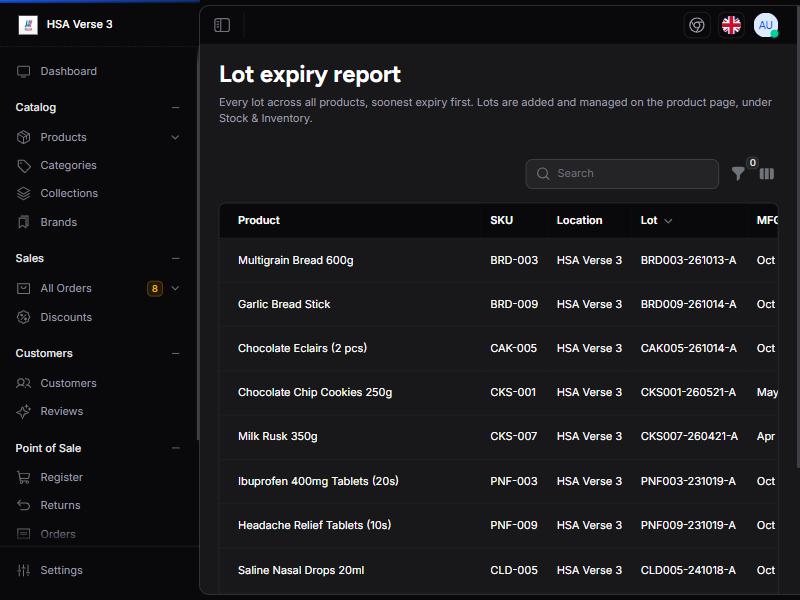
- Lists every lot with stock across all products, soonest expiry first.
- Status: OK (green), Expiring soon (amber), Expired (red), No expiry (grey).
- Search by lot number. Filters: product name or SKU, location, status (e.g. only Expiring soon).
- Click a product name to open it and adjust or write off its lots. The report itself is read-only.
What happens when you sell
- Online and POS sales take units from the lots at that branch in the Pick lots order. If lots run short, the rest comes from normal stock.
- Block expired: expired units don't count as sellable. If only expired stock is left, the product shows as Out of Stock on the website and at the till (unless backorders are allowed). Admin screens still show the full number, so write expired stock off.
- POS returns put resellable items back into the lot they were sold from. Damaged returns don't go back into stock.
Permissions
| Permission | Allows |
|---|---|
| Browse Stock Lots | Open the Lot expiry report (only their branches). |
| Manage Stock Lots | Adjust and write off lots. |
| Stock lots & expiry Settings | Change the settings above. |
Importing lots
The inventory CSV can create and correct lots with lot_number, expiry_date and mfg_date. See Catalog data.
18. Catalog data: reports, export, backup and import
Settings › Catalog import & export Stock › Catalog dataOne screen to check the health of your catalogue, download it (as CSV files or a full backup), and bring products and stock in from a file, with images.
Switch it on
- Go to Settings › Catalog import & export.
- Turn on Enable catalog import & export and press Save.
- A new menu item appears: Stock › Catalog data.
Who can use it
| Permission | Lets the person |
|---|---|
| Browse Catalog Reports | Open Catalog data and see the Reports tab. |
| Export Catalog | Use the Export tab and download their own exports. |
| Import Catalog | Use the Import tab and download their own import reports. |
Give these in Settings › Staff & permissions. Administrators have all three. Staff limited to some locations only see and import stock for those locations.
Reports tab
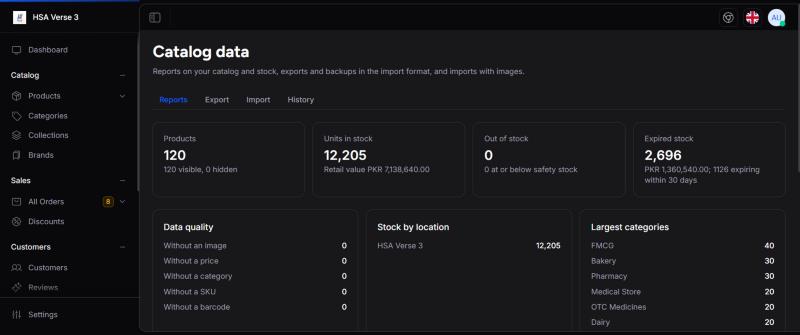
| Card | What it tells you |
|---|---|
| Products | Total products, and how many are visible or hidden. |
| Units in stock | Total units on hand and their retail value (quantity × price). |
| Out of stock | Products with nothing to sell, plus how many are at or below their safety stock. |
| Expired stock | Expired units and their value, and how many expire soon (only when Stock lots are on). |
| Data quality | Products without an image, price, category, SKU or barcode. Anything above 0 shows in orange: fix these first. |
| Stock by location | Units in each branch or warehouse. |
| Largest categories | Your 8 biggest categories by number of products. |
| Expiring soonest | Up to 10 lots closest to expiry (Stock lots on). |
Export stock report (CSV) downloads the same figures per SKU and location for Excel.
Export tab: download your catalogue
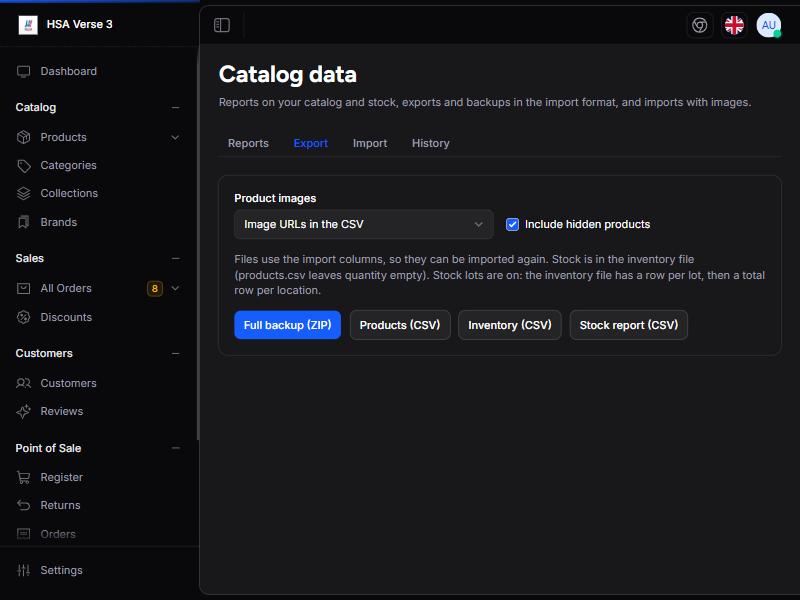
| Button | You get | Use it for |
|---|---|---|
| Full backup (ZIP) | A ZIP with products.csv, inventory.csv, a manifest and (optionally) an images/ folder | A complete copy you can import again, e.g. before big changes or to move to another shop |
| Products (CSV) | All product details | Editing prices, names or categories in Excel and importing back |
| Inventory (CSV) | Stock per SKU and location (and per lot when lots are on) | Stock counts and corrections |
| Stock report (CSV) | Quantity, status, value and expiry per SKU and location | Reporting only (cannot be imported) |
- Product images: Image URLs in the CSV (small file), Image files in the backup ZIP (full offline copy, Full backup only), or No images.
- Include hidden products: tick to export hidden products too.
- Exports use exactly the import columns, so any export can be imported again. Stock is only in the inventory file;
products.csvleaves quantity empty on purpose.
- Choose the options and click an export button.
- You are taken to History ("Export started"). The export runs in the background.
- When the status shows Completed, click Download.
Import tab: bring products and stock in
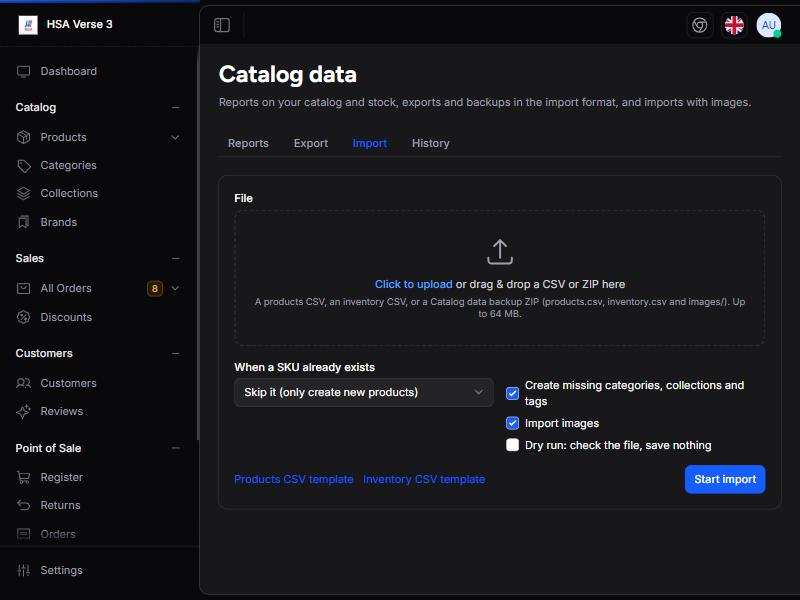
Upload one of these:
- a products CSV (new products or changes to existing ones),
- an inventory CSV (stock quantities, lots and expiry), or
- a Full backup ZIP from the Export tab (products first, then stock, with images).
Click the dashed box or drag the file onto it. The box shows the largest file your server accepts.
| Option | What it does |
|---|---|
| When a SKU already exists › Skip it (only create new products) | Safe default. Existing products are left alone; their rows are reported as skipped. |
| › Update it, and create new products | Updates products whose SKU matches and adds the rest. |
| › Update it, and skip new products | Only changes existing products; unknown SKUs are skipped. |
| Create missing categories, collections and tags | Creates any category path, collection, tag or attribute the file mentions that doesn't exist yet. Off: unknown names are ignored. (Brands are always created.) |
| Import images | Adds images from the images column. A product that already has images keeps them, so importing twice never duplicates. |
| Dry run: check the file, save nothing | Runs the whole import and then undoes it. Use it first to see errors without changing anything. |
- Download a template (Products CSV template or Inventory CSV template) and fill it in, or start from an export.
- Upload the file, pick the options, tick Dry run and click Start import.
- In History, read the result and fix any errors in the file.
- Untick Dry run and import again for real.
Products CSV columns
Only name is required for a new product. Separate several values with | (space, pipe, space).
| Column | What to write |
|---|---|
| name | Product name (required for new products). |
| slug | Web address part. Leave empty to make one from the name. |
| sku | Your unique product code. Used to find existing products when updating. |
| barcode | Unique barcode. |
| type | standard, variant, virtual or external. |
| summary, description | Short text, and the full description (HTML allowed). |
| price, compare_price, cost | Amounts in your main currency, e.g. 1250 or 19.99. compare_price is the crossed-out "was" price. |
| quantity | Starting stock, for new products only. To change stock later use the inventory CSV. |
| security_stock | Safety stock level (low-stock warning). |
| is_visible, featured | 1/yes or 0/no. Empty: visible, not featured. |
| brand | Brand name (created if missing). |
| categories | Full path with > , e.g. FMCG > Dairy > Milk & Yogurt. Several: Bakery | Breakfast. |
| collections, tags | Names, e.g. Fresh Today | Breakfast Basics. |
| attributes | Name=Value; Other=Value, e.g. Storage=Chilled; Dietary=Halal|Vegetarian. |
| published_at | e.g. 2026-01-15 09:00:00. Empty: now. |
| seo_title, seo_description | Text for Google. |
| weight_value, weight_unit | e.g. 0.5 and kg. |
| images | Image links (https) or, inside a ZIP, images/file.jpg. First image becomes the main photo. |
Inventory CSV columns
| Column | What to write |
|---|---|
| sku | Product or variant SKU (required). |
| location | Branch or warehouse name exactly as in Settings › Inventories (required). |
| quantity | Whole number, 0 or more (required). It sets the stock to this number; it does not add to it. |
| lot_number | Optional batch number. Only used when Stock lots are on. |
| expiry_date | YYYY-MM-DD, for a lot. |
| mfg_date | Manufacture date YYYY-MM-DD, optional. |
With lots on, a row with a lot number sets that lot's quantity (a new lot needs more than 0). With lots off, lot rows are skipped and reported; the plain total rows still set stock.
Images from links
- In Settings › Catalog import & export › Download images from these hosts, add each website your images come from, one per line, e.g.
images.pexels.com. - Links must start with
https://and each image can be at most 10 MB (jpg, png, webp or gif).
History tab and the import report
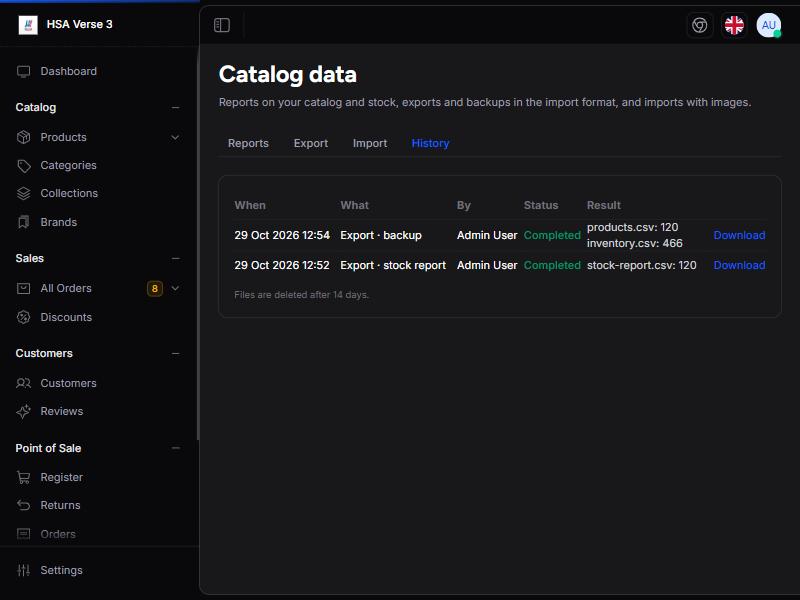
- Shows the last 25 exports and imports: when, what, who, status (Pending, Processing, Completed, Failed) and the result.
- Import results read like products: 12 new, 3 updated, 2 skipped, with the first few errors in red and notices in orange.
- Full report downloads every error and notice as a CSV. Messages name the row, e.g. Row 5 (Milk 1L): a product with SKU "MLK-1" already exists. (Row 1 is the header.)
- Download gets a finished export.
- The page refreshes itself while something is running.
Settings › Catalog import & export
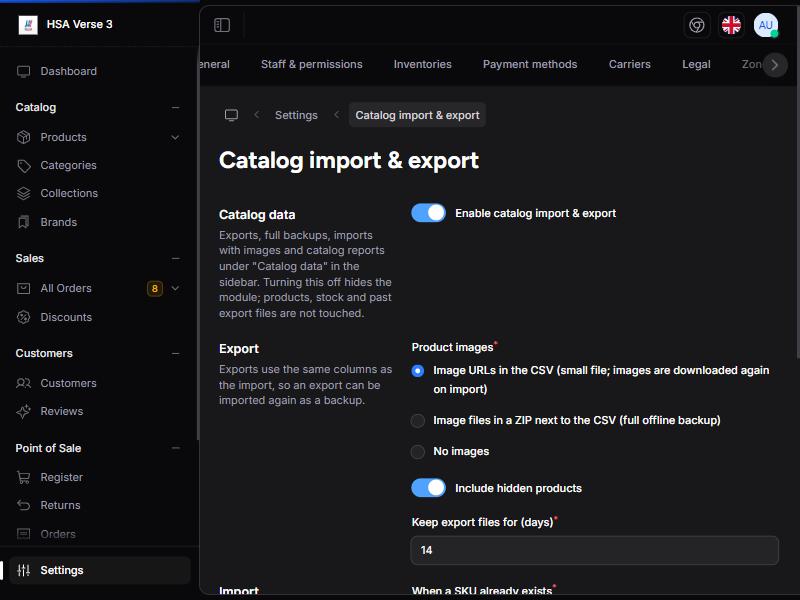
| Setting | Default | Meaning |
|---|---|---|
| Enable catalog import & export | Off | Shows or hides the whole module. |
| Product images (export) | Image URLs in the CSV | Default image choice on the Export tab. |
| Include hidden products | On | Default for exports. |
| Keep export files for (days) | 14 | After this, files are deleted (the History entry stays). |
| When a SKU already exists | Skip it | Default for imports. |
| Create missing categories, collections and tags | On | Default for imports. |
| Download images from these hosts | Empty | Websites image links may come from, one per line. |
Common problems
| Message or symptom | Fix |
|---|---|
| Status stays Pending | The background worker isn't running. Ask your administrator. |
| "a product with SKU … already exists" | Choose Update it… under "When a SKU already exists", or change the SKU. |
| "no location named … exists" | Write the location exactly as in Settings › Inventories. |
| "the host … is not in the allowed image hosts" | Add that website under Download images from these hosts. |
| "image files can only be imported from a ZIP upload" | images/… paths only work inside a backup ZIP. Use https links in a plain CSV. |
| "The file has neither product nor inventory columns" | Start from a template or an export so the column names are right. |
| Images didn't change on re-import | Existing images are never replaced. Delete the product's main image first. |
| File too large | The upload box shows your limit. Split the file, or ask your administrator to raise it. |
Backup ZIPs can hold up to 5,000 files and 512 MB once unpacked.
19. Staff and permissions
Settings › Staff & permissionsEvery person who works in the admin panel or at the till has their own login and one role. The role decides what they can see and do; their locations decide which branches.
The screen
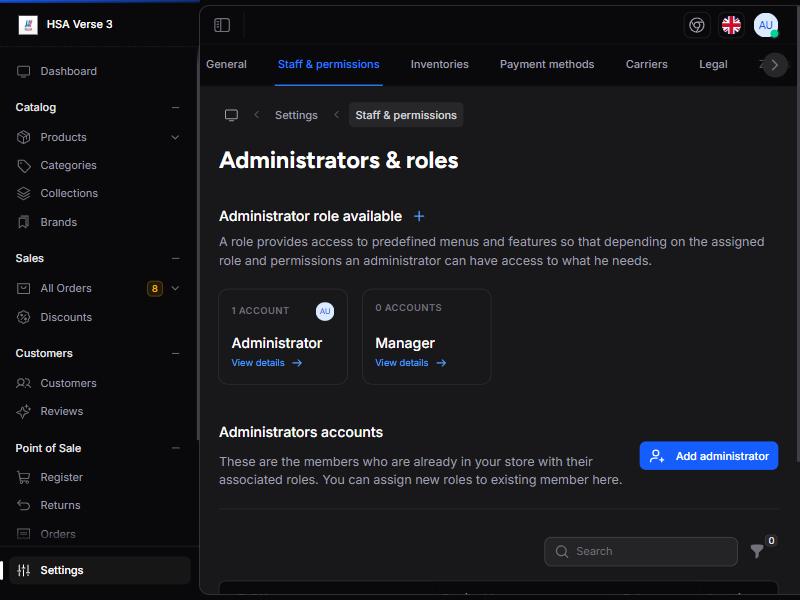
- Roles (top): one card per role with how many accounts use it. View details opens it; + adds a new role.
- Administrators accounts (below): every staff member with Email, Role, Locations and Access (Full or Limited). Edit or delete from each row.
Roles that come with the shop
| Role | Can do |
|---|---|
| Administrator | Everything, at every branch. Give it only to owners. |
| Manager | Nothing yet: it starts empty. Tick what your managers need. |
| Cashier | Sell at the POS register (Use Point of Sale) at their assigned branches. Nothing else: add Process Returns per person if they may refund. |
Create a role
- Click + next to "Administrator role available".
- Enter Name (in lowercase), e.g.
cashier, a Display name (Cashier) and a short description. - Open the new role (View details) › Permissions tab and tick what it may do.
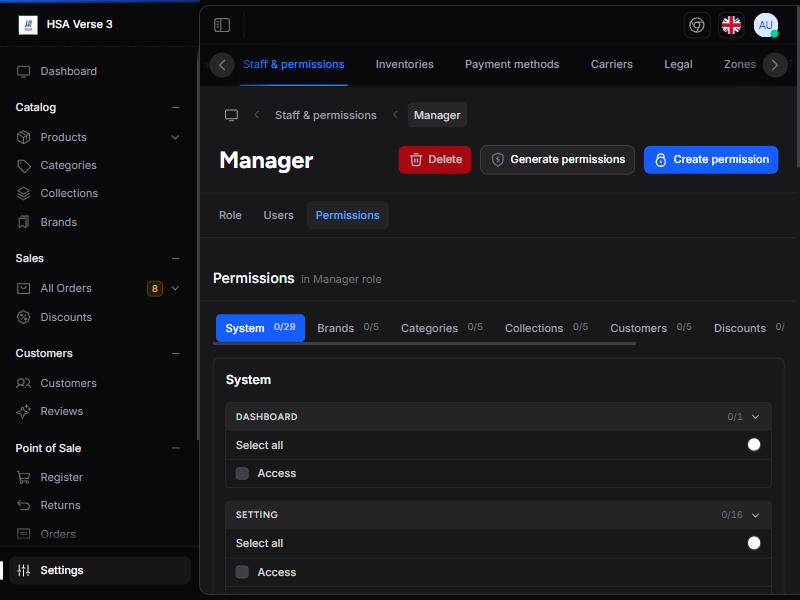
- Permissions are grouped by area: System, Brands, Categories, Collections, Products, Customers, Orders, Discounts.
- Inside an area, each card is one subject (e.g. Product Variants, Pos Orders) with Select all.
- Ticks save immediately; there's no Save button.
- Each tick shows only a verb (Browse, Read, Edit, Add, Delete…). Hover it to see the full name.
- Browse = see the list, Read = open one, Edit/Add/Delete = change.
Add a staff member
- Click Add administrator.
- Enter Email and a Password (or click Generate).
- Optional: turn on Send Invite to email them their login details.
- Enter First name, Last name (and gender and phone if you like).
- Choose the role. For any role except Administrator, pick their Locations (branches they work in).
- Save. They log in at
/cpanel.
To change someone's role, branches or password later, click Edit on their row. You can't change your own role, and administrator accounts can't be deleted.
Important permissions
| Permission | Allows |
|---|---|
| Access Dashboard | See the Dashboard page (sales and charts). Not needed to log in: anyone with at least one permission can log in, and people without this land on a Home page instead. |
| Access Setting | Open the Settings area. Each settings page also needs its own permission (below). |
| Staff & permissions Settings | Together with Access Setting: add, edit and delete staff. Give it only to trusted people. |
| Use Point of Sale | Use the POS register. |
| Process Returns | Take returns at the till and refund them. |
| Cancel Orders | Cancel an order. |
| Mark Orders Paid | Mark an order paid and capture an authorised payment. |
| Manage Shipments | Ship order, Mark delivered, create shipments and labels, edit tracking. |
| Issue Return Vouchers | Give store credit instead of cash at the returns counter. |
| Browse POS Orders / Browse POS Returns | See their own POS sales / returns. |
| Browse All POS Orders / Returns At Assigned Location | See everyone's sales / returns at their branches. |
| Browse Stock Lots / Manage Stock Lots | See the Lot expiry report / adjust and write off lots. |
| Browse Catalog Reports / Export Catalog / Import Catalog | The three parts of Catalog data. |
One permission per settings page
To open a settings page, a person needs Access Setting plus that page's own permission. Without it the card is hidden. This way a manager can get Storefront and Shipping rules without Staff or Payment methods.
Pages: General, Staff & permissions, Inventories, Payment methods, Carriers, Legal, Zones, Taxes, Currencies, Checkout, Returns, Storefront, Shipping rules, Stock lots & expiry, Catalog import & export. They're in the System area, named after the page.
Suggested roles
| Role | Tick |
|---|---|
| Cashier | Use the ready-made Cashier role (Use Point of Sale). Optionally add Browse POS Orders, Process Returns and Browse POS Returns. |
| Branch supervisor | Everything a cashier has, plus Browse All POS Orders/Returns At Assigned Location, Browse and Manage Stock Lots, Browse Catalog Reports. |
| Store manager | Access Dashboard (to see sales); Products, Categories, Collections, Brands, Orders, Customers, Discounts as needed; Access Setting plus only the settings pages they should change (e.g. Storefront, Shipping rules). |
What branches limit
Non-administrators only see their assigned branches in: the POS register and returns, POS order and return history, the Lot expiry report, Catalog data stock figures and exports, and inventory imports. Administrators see all branches.
Staff vs customers
Staff and customers are completely separate. Staff log in at /cpanel; customers log in on the website. The same email can be both, with two separate passwords. Customers never get roles.
Two-factor login
When two-factor authentication is enabled for your shop, each person turns it on for themselves under their account. It's not set from this screen.
20. Quick reference: what to change where
| I want to change… | Go to |
|---|---|
| Top black strip | Settings › Storefront › Announcement banner |
| Big homepage heading / photo | Settings › Storefront › Homepage hero |
| Free delivery / secure payment cards | Settings › Storefront › Trust badges |
| WhatsApp button or number | Settings › Storefront › WhatsApp chat |
| Footer text | Settings › Storefront › Footer text |
| Logo, store name, social links | Settings › General |
| Privacy / refund / terms / shipping pages | Settings › Legal |
| Menu and category images | Catalog › Categories |
| Collection tiles | Catalog › Collections |
| Featured products | Catalog › Products › edit › Featured |
| Lines on product cards / filters | Catalog › Attributes |
| Price and discount pill | Catalog › Products › edit › Pricing |
| Sell online / POS / both | Catalog › Products › edit › Sales channels |
| Guest checkout, Buy Now, discount codes | Settings › Checkout |
| Free delivery thresholds | Settings › Shipping rules |
| Countries and currencies | Settings › Zones, Currencies |